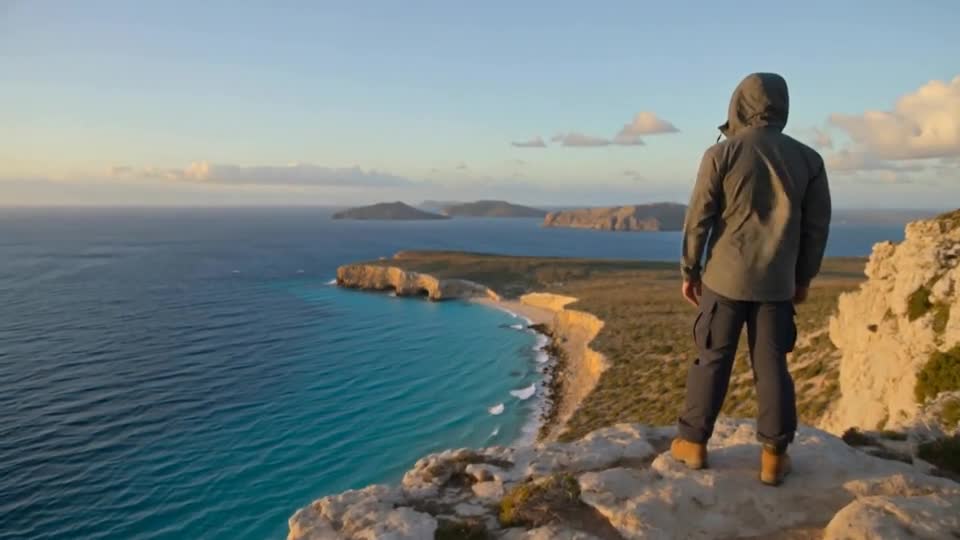
Image to Video AI
Upload a photo and bring it to life with natural motion. Describe what moves, and Pumio does the rest.
Preview stays on your device. Nothing is uploaded in waitlist mode.
Video generation is not available on Pumio yet. Join the waitlist for a launch notification.
Bring any photo to life
Image to video uses your picture as the first frame and adds motion: hair in the wind, waves on the shore, a slow camera push-in. Your composition, colors and subject stay in place.
It is ideal for product shots, portraits, travel photos and illustrations.
Try Image to Video AILet the picture do the describing
The image already carries the subject and the style. Use the prompt for motion only: what moves, what stays still and how the camera behaves.
Try: “Her hair moves gently in the breeze as the camera slowly pushes in. The background stays still.”
Start from a template
Want a specific effect? Templates such as Earth Zoom Out, Orbit Shot and Snow Globe are built on image to video with the prompt and settings already tuned.
How to use Image to Video AI
Choose a clear image that you have permission to use
Choose a clear image that you have permission to use.
Describe what moves and what should stay still
Describe what moves and what should stay still.
Review the whole clip before sharing it
Review the whole clip before sharing it.
Templates built on this tool
Browse all templates →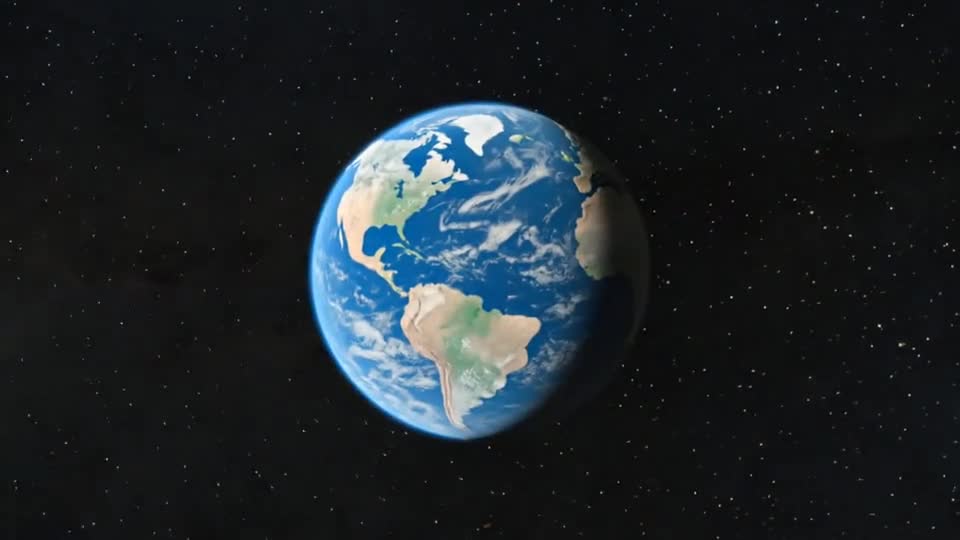
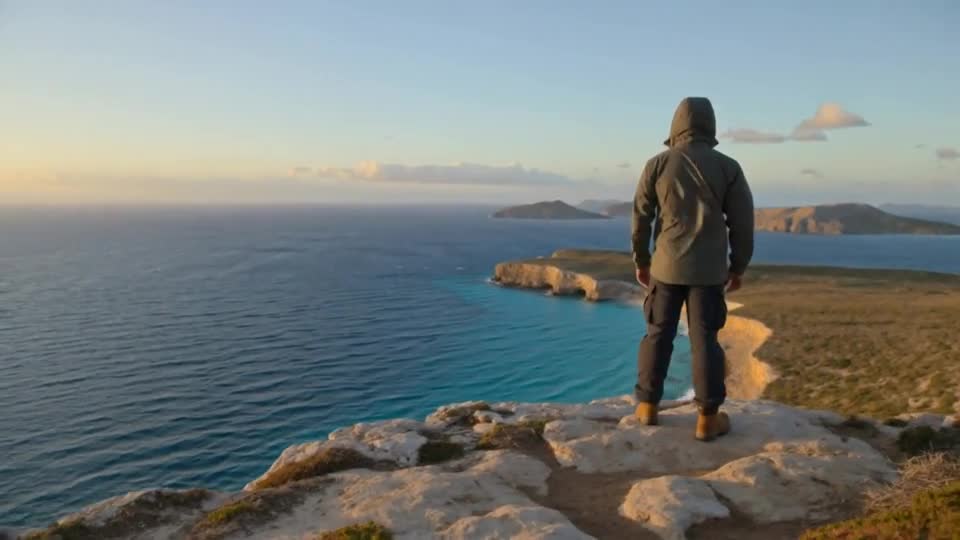
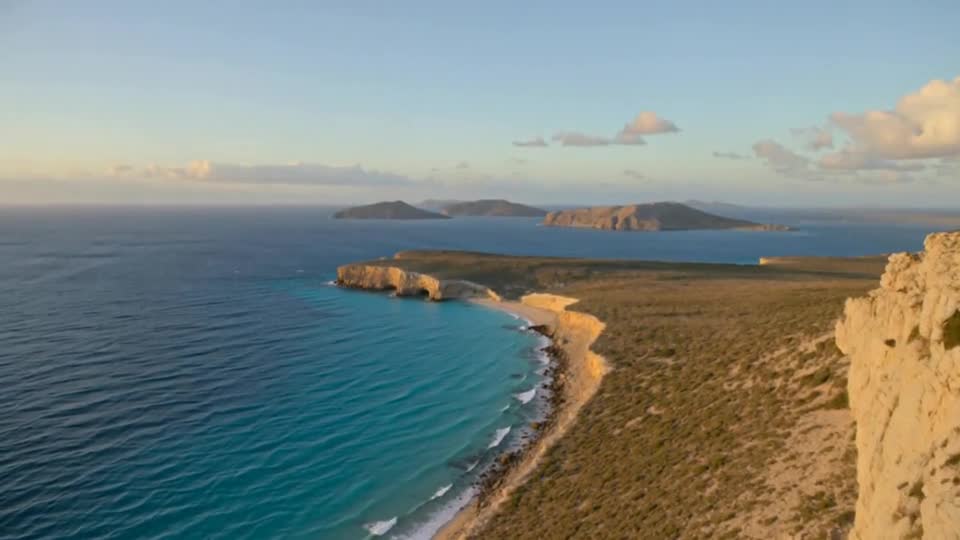
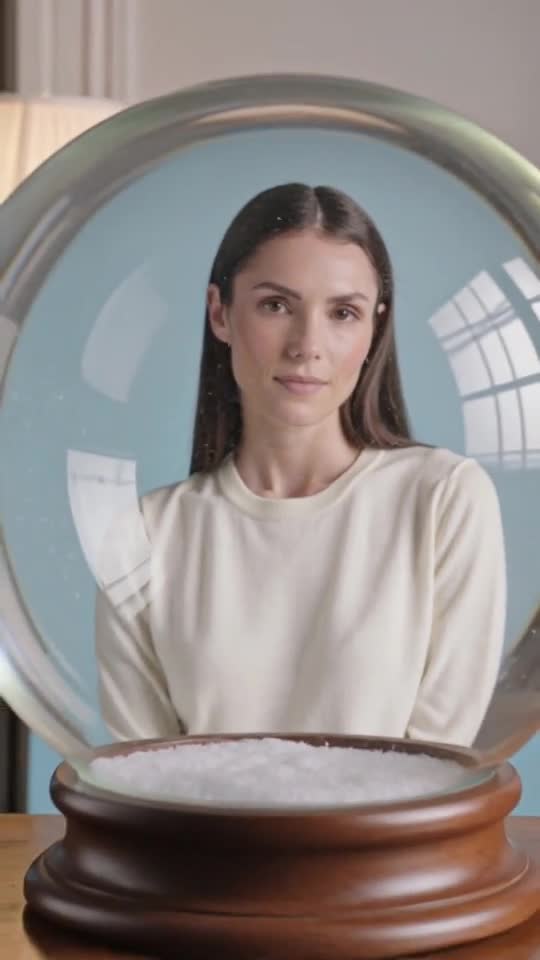
Image to Video AI: questions and answers
Which image formats are supported?
JPG, PNG and WebP images up to 10 MB.
Which image should I choose?
A sharp, well-framed image with room for the motion you want. Only use images you own or have permission to use.
Which model is used?
Image to video uses Kling v3 for five-second clips.
Start your first video
Describe a scene or add an image to begin.
Start creating